llama.cpp?

llama.cpp is a open-source library for LLM inference on various environments

Logo of llama.cpp

 - It supports most LLM models with various quantizations by GGUF 

 - It can work with or without GPU

 - It has little dependency

 - It supports several optimized libraries, such as BLAS, RPC(Remote Procedure Call), KleidiAi.


llama.cpp installation

I used docker. The following Dockerfile is used for building docker image.

FROM armv64v8/python:3.12-slim AS builder
COPY --from=docker.io/astral/uv:latest /uv /uvx /bin/

RUN apt-get update && apt-get install -y --no-install-recommends \
	git \
    build-essential \
    cmake \
    libopenblas-dev \
    pkg-config \
    curl \
    libcurl4-openssl-dev \
    && rm -rf /var/lib/apt/lists/*

WORKDIR /app

RUN git clone https://github.com/ggml-org/llama.cpp.git .

RUN cmake -B build -DGGML_RPC=ON

RUN cmake --build build --config Release


Build and run llama.cpp with docker is very simple.

# Build
docker build -t llama-cpp .

# Run (interactive shell)
docker run --rm -it -v /llama.cpp-models:/models --entrypoint /bin/bash llama-cpp

# Run (llama-cli for local inference)
docker run -v /llama.cpp-models:/models llama-cpp /app/build/bin/llama-cli -m /models/Qwen3-0.6B-Q8_0.gguf -p "hello"

# Run (llama-cli with RPC servers)
docker run -v /llama.cpp-models:/models llama-cpp /app/build/bin/llama-cli --rpc 192.168.1.51:50052,192.168.1.52:50052,192.168.1.53:50052,192.168.1.54:50052 -m /models/Qwen3-8B-Q8_0.gguf -p "hello"


Have FUN !!!

llama-cli execution with Qwen3-0.6B-Q8_0.gguf on RaspberryPi 4 with 4GB RAM


1. Raspbian Setup

Debian 11 Bullseye based Raspbian (for ARM 64bit)

 - 64 bit OS is highly recommended (mkxp-z checks the architecture and optimize to it)

 - RaspberryPi 3B model with 1 GB RAM can run the Pokémon  Another Red
 - To build mkxp-z, some swap memory may be needed


2. mkxp-z install

mkxp-z is a open-source cross-platform player for (some) RPG Maker XP / VX / VX Ace games.

 - Gamepads may work

sudo apt update
sudo apt install git build-essential cmake meson autoconf automake libtool pkg-config ruby bison zlib1g-dev libbz2-dev xorg-dev libgl1-mesa-dev libasound2-dev libpluse-dev 

git clone https://github.com/mkxp-z/mkxp-z.git
cd mkxp-z/linux
make
source vars.sh
cd ..; meson setup build
cd build; ninja

# copy mkxp-z.aarch64 binary to the game folder


3. Pokémon Another Red download

Pokémon  Another Red is a fan-made Pokémon game (https://cafe.naver.com/1209sung/12376)

Download from the google drive link (https://drive.google.com/drive/folders/1c7510OZVr5VlbHWHUOpXGDiTo4HTgFVj)

# copy downloaded Pokemon
cd ~/Pokemon
# copy mkxp-z binary to the game folder
cp ~/mkxp-z/build/mkxp-z.aarch64 .

vi /home/pi/launch_pokemon.sh


/home/pi/launch_pokemon.sh

cd ~/Pokemon
./mkxp-z.aarch64


4. Run script setting

mkdir -p ~/.config/autostart

vi ~/.config/autostart/pokemon-autostart.desktop


~/.config/autostart/pokemon-autostart.desktop

[Desktop Entry]
Type=Application
Name=Pokemon Autostart
Comment=Auto starts Pokemon on login
Exec=/home/pi/launch_pokemon.sh


Reboot & Enjoyyyy

'Programming > RaspberryPi' 카테고리의 다른 글

llama.cpp on RaspberryPi  (0) 2025.12.20
RaspberryPi Clustering Setup part2  (0) 2025.08.12
RaspberryPi Clustering Setup part1  (0) 2025.08.12
Install chrome-driver for RaspberryPI  (0) 2025.02.14
Install Nextcloud on RaspberryPi  (0) 2023.03.15

Ssh Configuration

For controller (raspberypi)

## ssh key generation for ssh without login
$ ssh-keygen

## copy key to workers
$ ssh-copy-id root@192.168.1.51
$ ssh-copy-id root@192.168.1.52
$ ssh-copy-id root@192.168.1.53
$ ssh-copy-id root@192.168.1.54

## pssh (parallel-ssh) install
$ sudo apt update
$ sudo apt install pssh

## make hosts.txt file
$ echo "192.168.1.51" | tee -a hosts.txt
$ echo "192.168.1.52" | tee -a hosts.txt
$ echo "192.168.1.53" | tee -a hosts.txt
$ echo "192.168.1.54" | tee -a hosts.txt

## parallel ssh to all workers
$ parallel-ssh -h hosts.txt -i -l root 'echo "hello"'


NFS Configuration

For controller (raspberypi; nfs-server)

## mount SSD
$ echo "UUID=xxxxxxxx-xxxx-xxxx-xxxxxxxxxxxx /mnt/SSD ext4 defaults,nofail 0 2" | sudo tee -a /etc/fstab
$ mount -a

## install nfs server
$ sudo apt update
$ sudo apt install nfs-kernel-server

## nfs configuration @ /etc/exports
$ echo "/mnt/SSD 192.168.1.0/24(rw,sync,no_subtree_check)" | sudo tee -a /etc/exports

## restart nfs server
$ sudo systemctl restart nfs-kernel-server

For worker (Odroid 1,2,3,4; nfs-client)

## install nfs client
$ sudo apt update
$ sudo apt install nfs-common

## mount nfs
$ sudo mkdir -p /mnt/SSD
$ echo "192.168.1.1:/mnt/SSD /mnt/SSD nfs defaults,noatime,x-systemd.automount 0 0" | sudo tee -a /etc/fstab
$ mount -a

Kubernates Configuration

k0s installation

For controller (raspberrypi)

## install k0s
$ curl -sSLf https://get.k0s.sh | sudo sh

## check dependencies
$ sudo k0s sysinfo


In case of dependency check failure, modify boot command (/boot/firmware/cmdline.txt for raspberrypi4)

console=serial0,115200 console=tty1 ... cgroup_enable=memory


## make configuration
$ sudo k0s config create | sudo tee /etc/k0s/k0s.yaml

## if needed modify the configuration

## install controller
$ sudo k0s install controller -c /etc/k0s/k0s.yaml
$ sudo k0s start

## create token for workers
$ sudo k0s token create --role=worker | sudo tee /mnt/SSD/k0s_worker_token


For worker (Odroid 1,2,3,4)

## install k0s
$ curl -sSLf https://get.k0s.sh | sudo sh

## check dependencies
$ sudo k0s sysinfo


In case of dependency check failure, modify boot command (/media/boot/boot.ini for Odroid c4)

setenv bootargs "root=UUID=... systemd.unified_cgroup_hierarchy=0"


## install worker with token
$ sudo k0s install worker --token-file /mnt/SSD/k0s_worker_token
$ sudo k0s start

## check
$ sudo systemctl status k0sworker


k0s kubernates control

## get nodes
$ sudo k0s kubectl get nodes

System Configuration

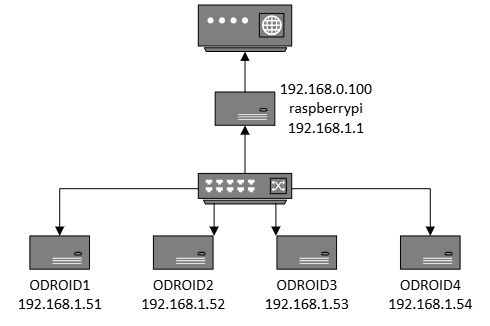
Controller : 1 x Raspberry pi 4 / Quad Cortex-A72 @ 1.8GHz / LPDDR4-3200 4GB / Debian 12 (bookworm) based Raspbian / 1GbE + USB Ethernet Adaptor / 256 GB SSD (via USB 3.0 for NFS)

Worker : 4 x Odroid c4 / Quad Cortex-A55 @ 2GHz / DDR4-2640 4GB / Ubuntu 22.04 / 1GbE

Network Configuration

dhcp server @ raspberrypi

## eth0 (for internet; Wired connection 1), eth1 (Wired connection 2) static ip setup
$ sudo nmcli connection modify "Wired connection 1" ipv4.method manual ipv4.addresses 192.168.0.100/24 ipv4.gateway 192.168.0.1 ipv4.dns 8.8.8.8
$ sudo nmcli connection down "Wired connection 1"
$ sudo nmcli connection up "Wired connection 1"
$ sudo nmcli connection modify "Wired connection 2" ipv4.method manual ipv4.addresses 192.168.1.1/24 ipv4.gateway 192.168.1.1 ipv4.dns 8.8.8.8
$ sudo nmcli connection down "Wired connection 2"
$ sudo nmcli connection up "Wired connection 2"

## dnsmasq (dhcp server) setup
$ sudo apt update
$ sudo apt install dnsmasq
$ sudo vi /etc/dnsmasq.conf


/etc/dnsmasq.conf

#interface=interface_name
interface=eth1

#dhcp-range=start_ip,end_ip,subnet_mask,lease_time
dhcp-range=192.168.1.50,192.168.1.100,255.255.255.0,12h

#dhcp-host=MAC_address,ip
dhcp-host=xx:xx:xx:xx:xx:x1,192.168.1.51
dhcp-host=xx:xx:xx:xx:xx:x2,192.168.1.52
dhcp-host=xx:xx:xx:xx:xx:x3,192.168.1.53
dhcp-host=xx:xx:xx:xx:xx:x4,192.168.1.54

#dhcp-option=3,gateway
dhcp-option=3,192.168.1.1

#dhcp-option=6,dns-server
dhcp-option=6,8.8.8.8,8.8.4.4


## restart dhcp-server
$ sudo systemctl restart dnsmasq

## NAT setup
$ sudo vi /etc/sysctl.conf


/etc/sysctl.conf

net.ipv4.ip_forward=1


## apply
$ sudo sysctl -p

## iptables NAT rule setup
## type NAT out to eth0
$ sudo iptables -t nat -A POSTROUTING -o eth0 -j MASQERADE

## save iptables
$ sudo apt install iptables-persistent
$ sudo sh -c 'iptables-save > /etc/iptables/rules.v4'

Ubuntu에서 Remote Desktop Client를 써 봤을 때, 매우 만족했었다.

해당 Remote Desktop Client는 Remmina인데,

Raspbian에서도 설치가 가능하다.


설치는

$ sudo apt-get install remmina


사용법은

$ remmina

윈도우 접속 하고자 하는 경우: RDP 선택 후, IP 입력하면 연결 할 수 있다.


라즈베리 파이로 돌리기에는 다소 버거울 수 있지만, 

그래도 없는 것 보다는 낫지 않을까...?하는 마음으로 켜봤는데

예상보다 훨~~씬 빠르다!!! 오히려 라즈베리파이 데스크톱 보다 빠른 느낌...?

'Programming > RaspberryPi' 카테고리의 다른 글

Rasbian qbittorrent-nox installation  (0) 2019.11.19
SD card image backup  (0) 2018.10.12
SDcard Partition Resize  (0) 2018.08.21
Raspbian Korean(Hangul) Install  (0) 2018.05.18
Raspbian Install  (0) 2018.05.16

Raspbian installation on Raspberry Pi 3


Raspberry Pi 3 model B는 프로세서로 Broadcom BCM2837를 포함하고 있는데, 이는 ARM Cortex A-53 quad core를 포함한다.

Raspbian은 Raspberry Pi 를 위한 Debian based OS이다.

RaspberryPi 에는 다른 OS 보다 Raspbian 을 사용하는 것이 편리할 수 있다.


Raspbian 은 Rasberry Pi 사이트로 부터 다운 받을 수 있다.

2018년 5월 현재 Stable 버전인 RASPBIAN STRETCH WITH DESKTOP 을 다운 받으면 된다.

stretch는 Debian의 code name 이다.

zip 파일을 다운 받아 압축을 풀면(반디집 등으로 풀면 됨) .img 파일이 나온다.


다운받은 image 를 USB bunner중 하나인 Etcher 를 사용하여 USB 디스크를 만들면 된다.

Etcher는 https://etcher.io 에서 다운로드

Select image로 위에서 압축 풀어 나온 .img 파일을 선택하고

USB 장치는 자동으로 선택되는데, 잘 선택 되었는지 확인 

Flash!를 하면 된다. 쉽다.


참조: https://www.raspberrypi.org/documentation/installation/installing-images/README.md

'Programming > RaspberryPi' 카테고리의 다른 글

Rasbian qbittorrent-nox installation  (0) 2019.11.19
SD card image backup  (0) 2018.10.12
SDcard Partition Resize  (0) 2018.08.21
RaspberryPi Remote Desktop Client  (0) 2018.06.01
Raspbian Korean(Hangul) Install  (0) 2018.05.18

+ Recent posts